

Litematica
- ⬇ 28.1M downloads (as reported by Modrinth)
- ♥ 9.1K followers
- License: GNU Lesser General Public License v3.0 only
- Updated:
- Loaders: fabric, forge, liteloader, ornithe, rift
Description
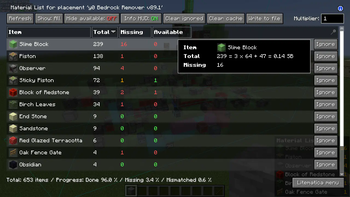
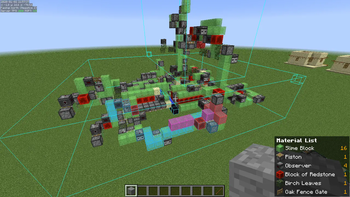
Litematica is a modern schematic mod primarily targeting light mod loaders like LiteLoader on MC 1.12.x, Rift on MC 1.13.x and Fabric on MC 1.14+.
There is also a Forge version, but currently only for MC 1.12.2. For later MC versions there are currently only third party ports such as Forgematica.
Litematica has all the main features (plus a bunch more) of the old Schematica mod, except for the printer, which is not planned for Litematica itself, but instead is left to extension mods (see: aria1th printer or the other printer).
Compatibility with shaders
Litematica's rendering doesn't currently work properly with shaders (even with Iris) in 1.21.3+. So when you need to use Litematica (schematic rendering), disable shaders.
In older MC versions the rendering works better with shaders, at least with Iris, but also depending on the shader pack. Some shader packs break the rendering pretty badly, but some used to work pretty nicely. Optifine in general is/was a lot more problematic, pretty much you can't use shaders at all with Optifine if you use Litematica. The general recommendation is to use Sodium (and Iris) instead of Optifine.
Hotkeys
The default hotkey to open the Litematica main menu is M.
Note: If you use a non-QWERTY keyboard layout, then the keys may be different, such as M becoming , on AZERTY.
<details
<summaryOther common default hotkeys:</summary
- M + C - The direct hotkey to open the config menu
- M + R - Toggle ON/OFF ALL rendering from Litematica
- M + G - Toggle ON/OFF just schematic rendering ("ghost blocks" - all HUDs for example will still render)
- M + T - Toggle ON/OFF the "tool item" (which is by default a stick) functionality
- M + P - Directly open the Schematic Placements menu/list
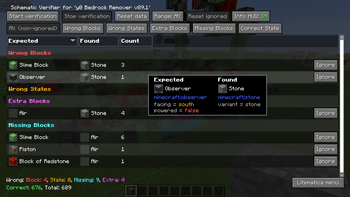
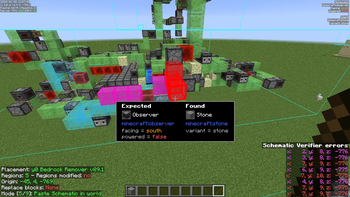
- M + V - Open the Schematic Verifier menu
- Numpad minus - Open the placement configuration menu for the currently selected placement
- Numpad multiply - Open the Area Editor menu
- Page Up/Down - Change the selected layer in the render layers settings
- M + Page Up/Down - Change the render layers mode
- Ctrl + scroll (holding the tool) - Cycle the "tool mode" (there is also a button for this in the lower left corner of the main menu)
- Alt + scroll (holding the tool) - Nudge/move the selected placement or area selection box or corner (depending on the tool mode) in the direction the player is looking at
- Ctrl + M - Toggle or cycle the…
Popular Mods
 Fabric API
 Sodium
 Iris Shaders
 Entity Culling
 Cloth Config API
 FerriteCore
Minecraft Mods
Discover and download top Minecraft mods across Modrinth and CurseForge. Filter by Fabric, Forge, NeoForge, and Quilt with automated dependency detection and pack export.
Arata Inlooker · Socials & Direct Contact
Direct Messages & Inquiries Accepted • Official Verified Channels